
Table of Contents:
Measurement Settings and Visibility
Distance Measurement and Terrain Cross-Section Generation
Bulk Export and Analytical Data Copying
Introduction
Located below the primary toolbar is the measurement toolbar. It is used to perform point, line, area, and volumetric analyses directly on the map.
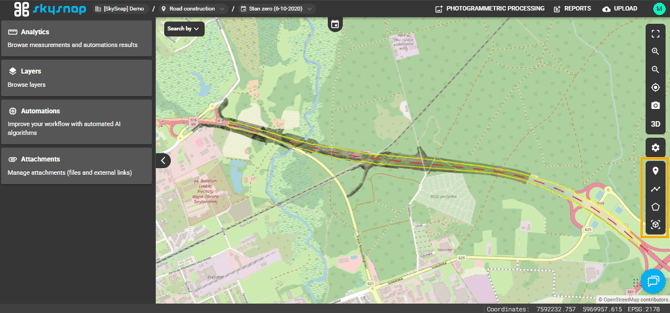
Measurement settings and visibility
The first icon on the toolbar represents the Drawing settings. These settings define features such as the destination save folder and determine the visibility of the analyses you add:PUBLIC measurement - visible to all users of the project.
PRIVATE measurement - visible exclusively to you—ideal for draft analyses. Only the author of a measurement can alter its visibility status.
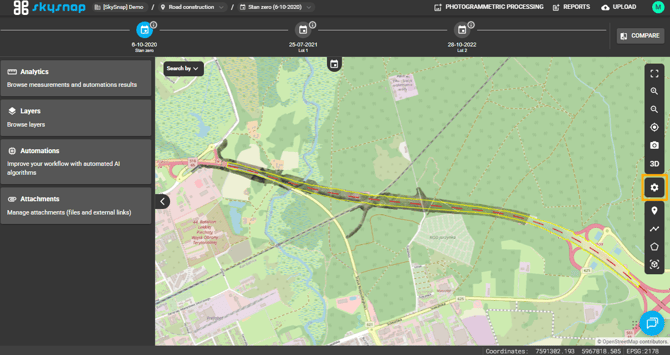
Click the settings description icon to view the options for dividing measurements into public and private, as well as choosing the destination folder.
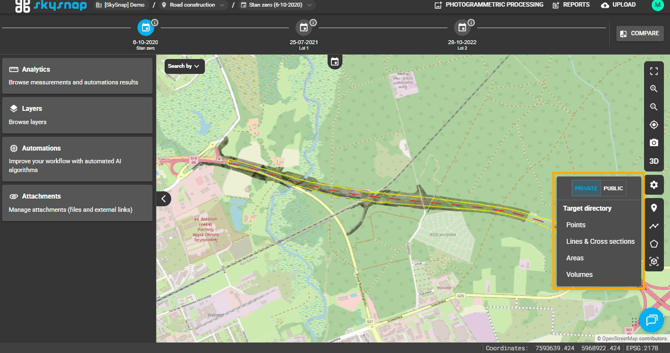
ATTENTION: Only the author of a specific measurement has the permission to toggle its status between public and private at any time (the status icon is located next to the measurement name on the list).
Pins and team communication
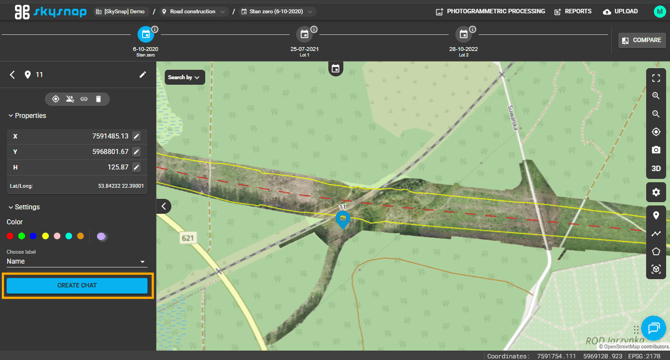
Pin — click the pin icon to activate the tool, and then click anywhere on the map to insert it.
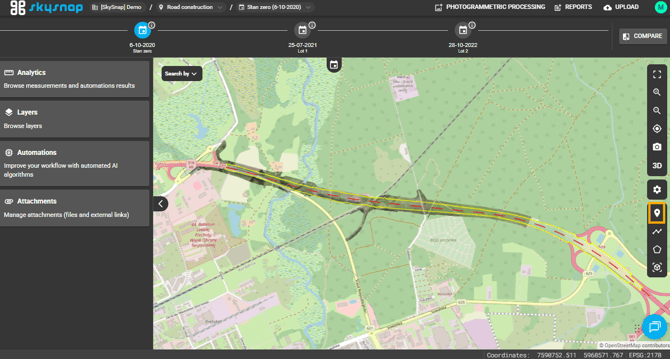
Once the pin is placed, a properties panel displaying the coordinates will appear. You can change how it is displayed and create a chat attached to the pin.
@ symbol (e.g., @JohnDoe@mail.com), which will trigger a notification for them.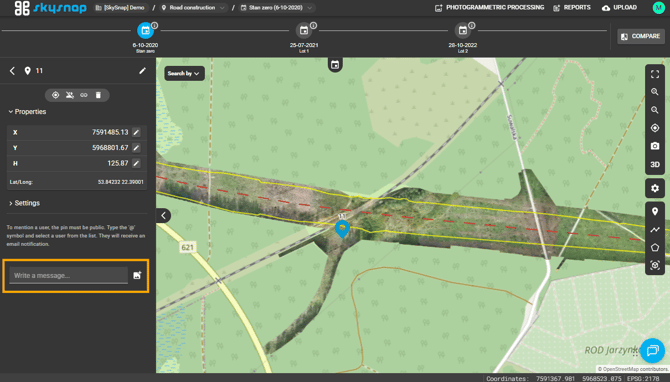
Distance measurement and terrain cross-section generation
The next tool is the distance measurement, activated by clicking the line icon.
Left-click to add consecutive vertices. Finish by double-clicking the left mouse button or single-clicking the right mouse button. You will then see the properties panel for this measurement.
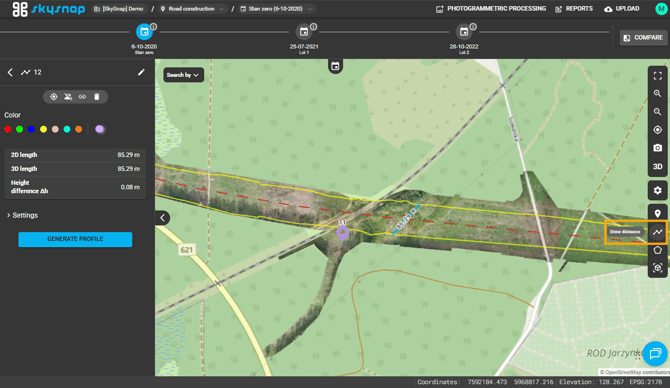
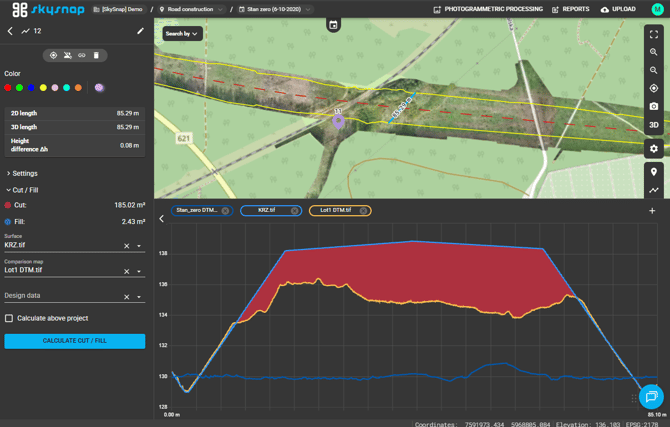
You can generate a terrain cross-section from a distance measurement—click the corresponding option in the measurement properties panel.

The generated cross-section profile displays a chart showing the intersection through the elevation layers. You can add and remove layers (including those from other projects).
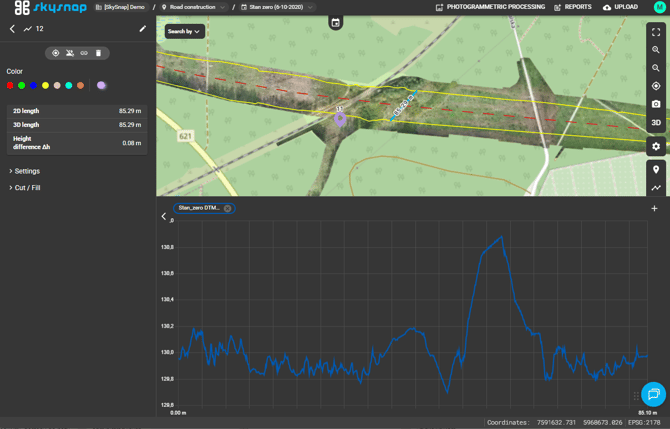
For each terrain cross-section, you can calculate the cut and fill values. They are calculated in square meters (as a vertical surface area) relative to the reference surface you specify..
Area measurement
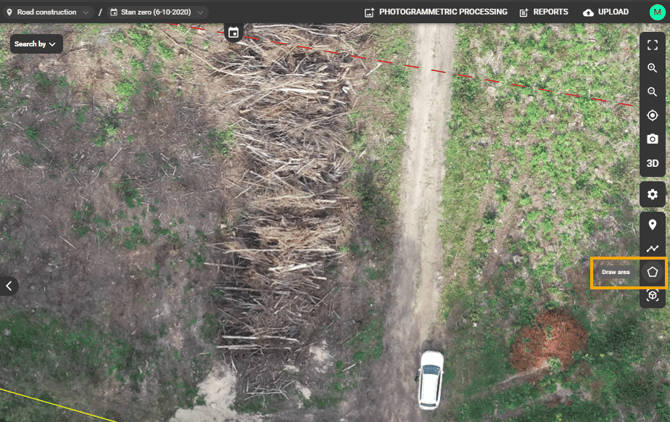
Use the polygon icon to activate the area measurement tool. Left-click to place consecutive vertices, and double-click to finish.
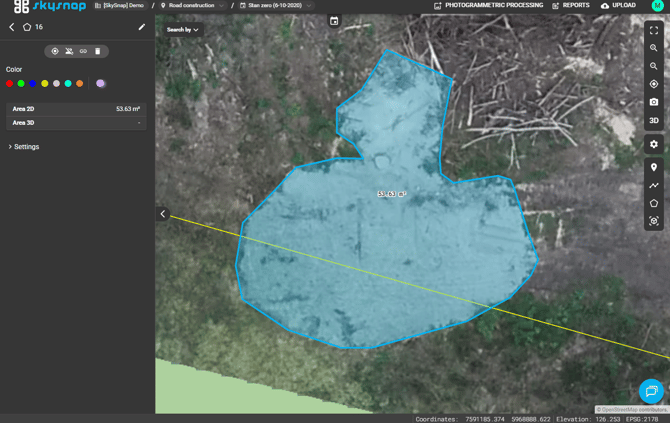
Once the polygon is closed, you will see a properties panel displaying the area value in various units.
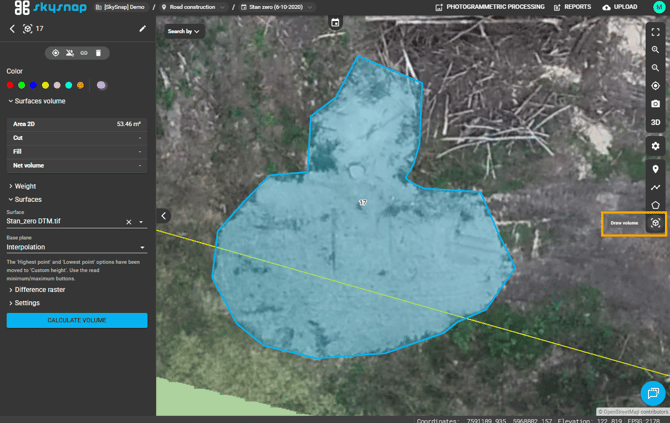
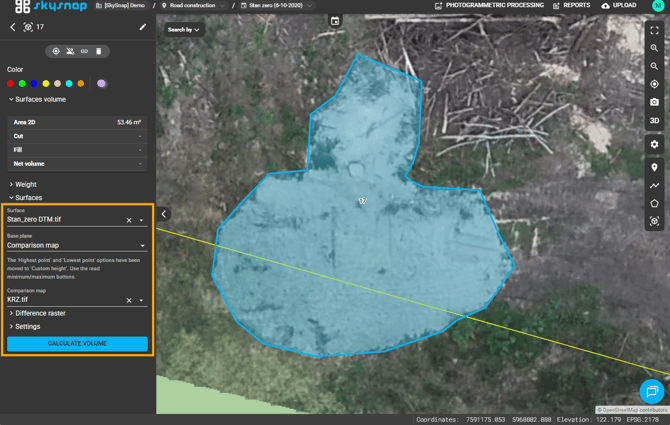
Fill in the base surface and select the type of reference surface (e.g., "Given height" or "Other surface" from a different flight).
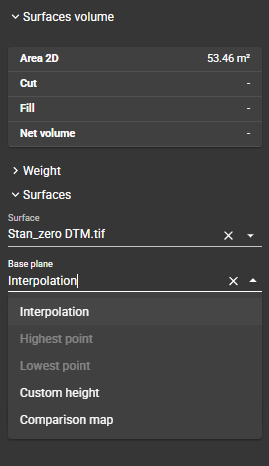
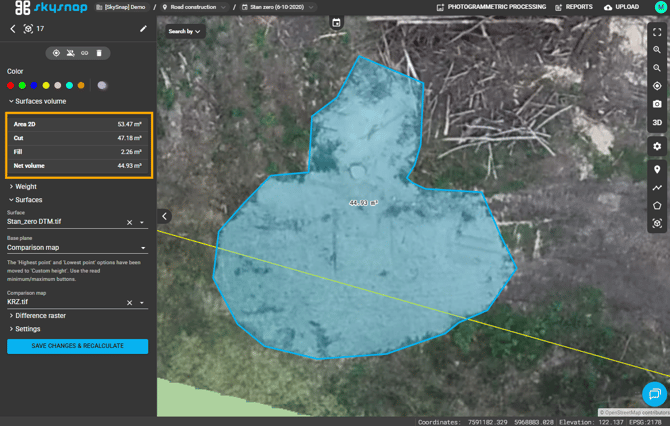
Click "Calculate volume" and wait for the result to appear in the properties window. The result will display once the data has been processed.
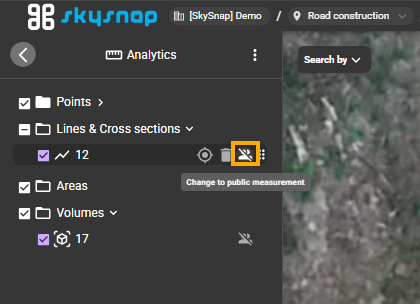
ATTENTION: Only the author of a measurement has the permission to change its visibility status. This gives you full control over which of your analyses are shared with the rest of the team and which remain as your working notes.
Bulk export and analytical data copying
Bulk export of measurements — click the export icon in the "Analytics" section.
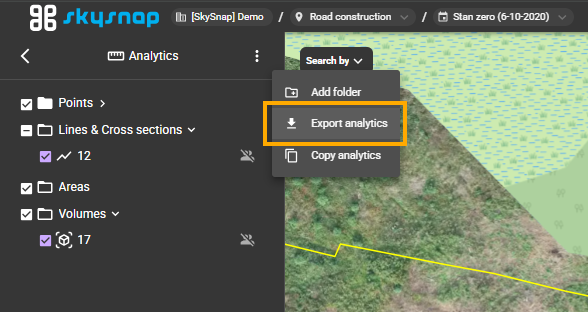
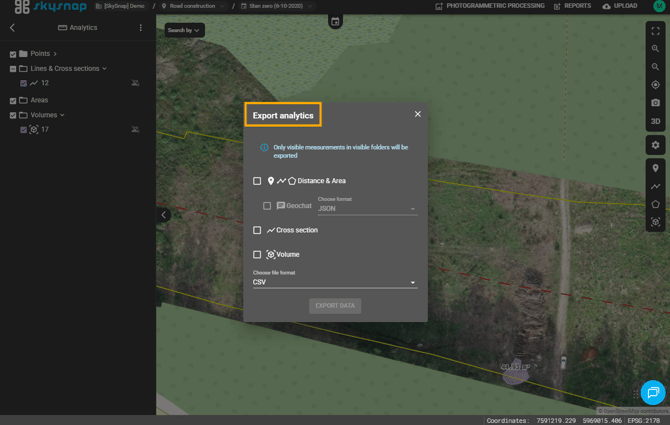
You can export distances, areas, cross-sections, or volumes to the following formats: GeoJSON, SHP, KML, DXF, CSV. Only currently visible measurements will be exported.
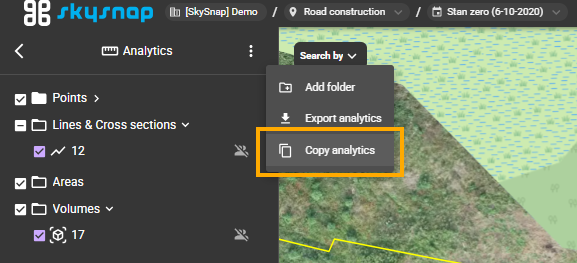
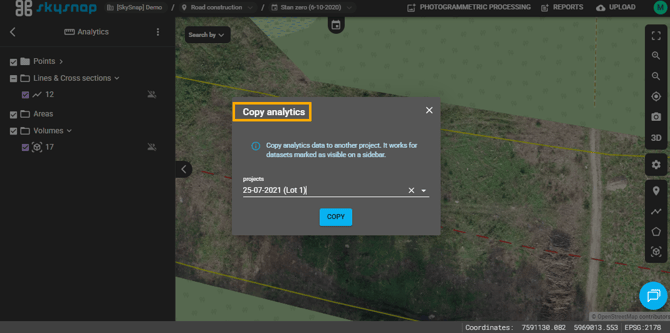
Copy analytical data — transfers measurements between different flight dates. This is ideal for monitoring progress: instead of drawing a stockpile from scratch, you copy the shape from one flight to the next—maintaining perfect repeatability.
Reports
You can export the measurements taken in a project to a PDF file as a Measurement report. You generate reports from the Reports menu on the portal's top bar. For a full description of the available report types and their settings, see the "Reports" article.
Exporting Geochat
Geochat is the portal's built-in commenting system, pinned to specific measurements on the map or model. Instead of a separate chat, the discussion stays attached to the object it concerns, along with authors, timestamps, @mentions and attachments. You can export the entire Geochat history together with your measurements.
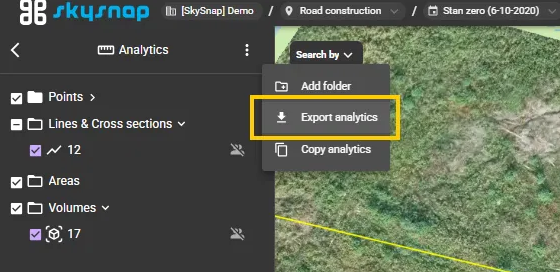
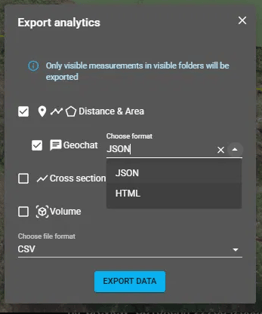
In the Export analytics window, tick Geochat and choose the export format from the list:
- JSON: structured data, best for further processing or importing into other systems,
- HTML: a ready-to-read page that opens in any browser, grouped by measurement and thread.
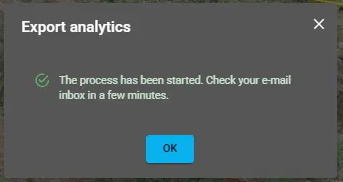
The export runs in the background, and a ZIP archive is sent to the e-mail address linked to your account. It contains two files:
- a measurements file in the chosen format (e.g.
measurements.csv) with the geometry (WKT); - a Geochat file (
geochat.jsonorgeochat.html) grouping comments by measurement and thread, with author, timestamp, content, @mentions and attachments.
The Geochat file only includes measurements that have comments. If nothing is selected or there are no comments, the files will be empty (e.g. a CSV with only the WKT header, or [] in JSON).