
Table of contents:
Clicking the Reports button expands the list of available document types you can generate.
In the portal, you can generate the following reports:
- Cross section report - a summary of terrain cross sections created in the project,
- Volume report - a summary of volume measurements created in the project,
- Measurement report - a summary of measurements taken in the project,
- Inspection report - a summary of annotations added to photos.
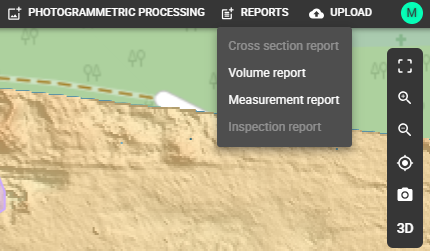
ATTENTION: A report of a given type can only be generated if the project contains at least one object that can be included in it. If no such objects exist, the menu item is grayed out - for example, if there are no volume measurements in the project, the Volume report option will be inactive.
TIP: Can’t use the report generation option? Check your portal permissions in the "Users roles" article.
- .PDF,
- .CSV.
Cross section report
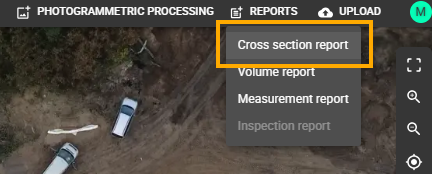
You can compile cross sections into a report. From the top menu, select Reports → Cross section report.
NOTE: This report includes both visible cross sections generated by the Automatic cross section automation and visible cross sections created after generating a profile for a regular distance.
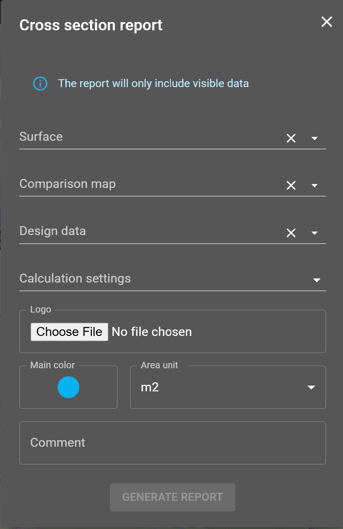
In the report window, fill in the following parameters:
- Surface - base surface (terrain model),
- Comparison map - comparison surface,
- Design data - design data,
- Calculation settings - calculation method (e.g. Calculate below design data),
- Logo - lets you attach your own logo file, which will appear in the report,
- Main color - the main report color; you can change it as needed,
- Area unit - area unit (e.g. m²),
- Comment - an additional comment.
After setting all parameters, click GENERATE REPORT.
ATTENTION: The report includes only visible data. Before generating it, make sure the appropriate layers and cross sections are enabled. Hidden data will be omitted.
ATTENTION: Visible cross sections must fall within the surface area.
TIP: You can view a sample cross section report by clicking the report image below. ⬇️
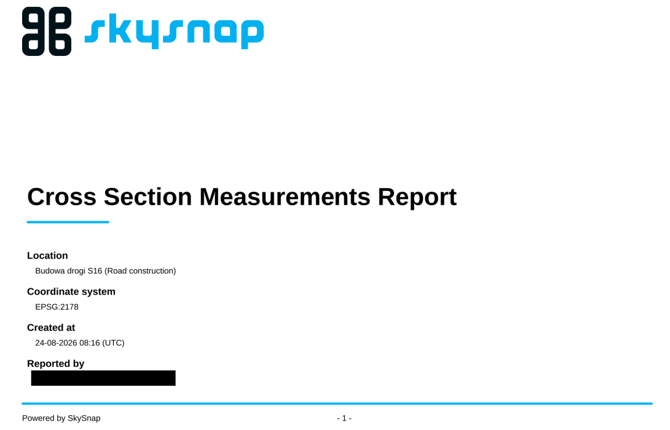
The PDF report consists of the following parts:
- Title page (page 1) - basic report information:
- Location,
- Coordinate system,
- Report date,
- Created by.
- Summary table (page 2) with a list of all cross sections, where for each chainage value (the Name column, e.g. 0+500, 0+600), the following cross section areas are provided:
- Cut [m²],
- Fill [m²].
- A separate page for each cross section (pages 3–7), containing:
- a profile chart comparing all selected surfaces (e.g. initial state, current model, KRZ design data),
- horizontal and vertical scales,
- an elevation table for successive points,
- a summary of Cut area and Fill area for that cross section,
- a View in SkySnap Portal link leading to the given cross section in the portal.
NOTE: The cross section report is also available in .CSV format. You can view a sample report by clicking CROSS SECTION REPORT (.CSV).
Volume report
You can generate volumes as a ready-made graphical report. From the top menu, select Reports → Volume report.
NOTE: This report includes all visible volumes created as a result of the Automatic stockpiles recognition and Automatic volumes automations, as well as manually created volume measurements.
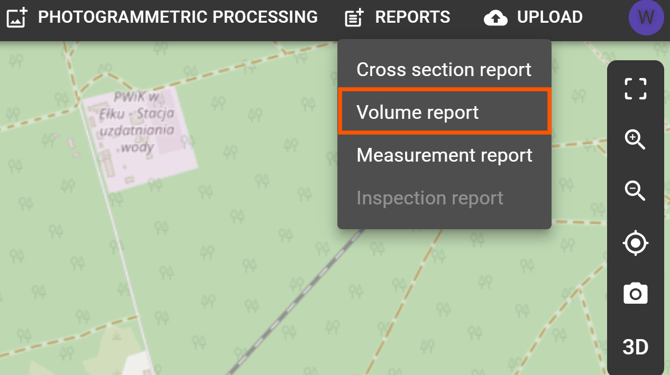
In the Volume report window, fill in the following optional parameters:
- Logo - your own logo file,
- Main color - the main report color,
- Area unit - area unit (e.g. m²),
- Comment - an additional comment.
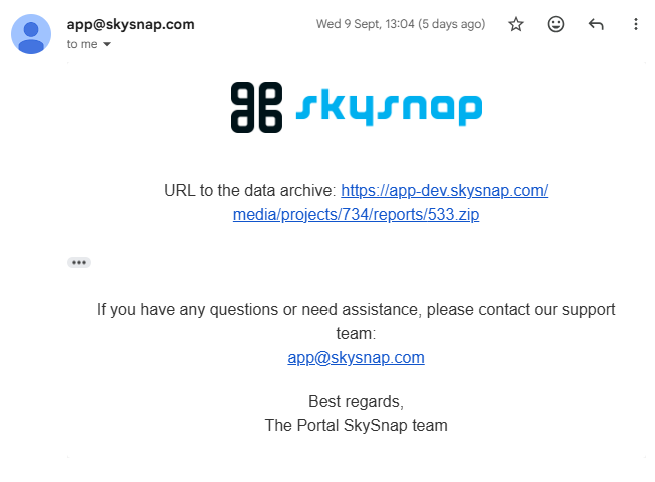
Click GENERATE REPORT. The finished report will be sent to your email.
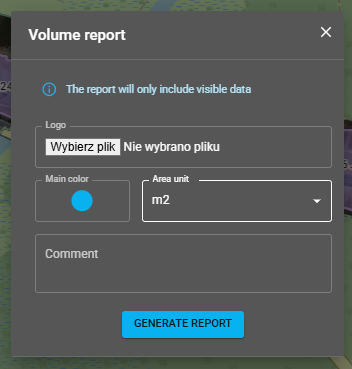
TIP: You can view a sample volume report by clicking the report image below. ⬇️
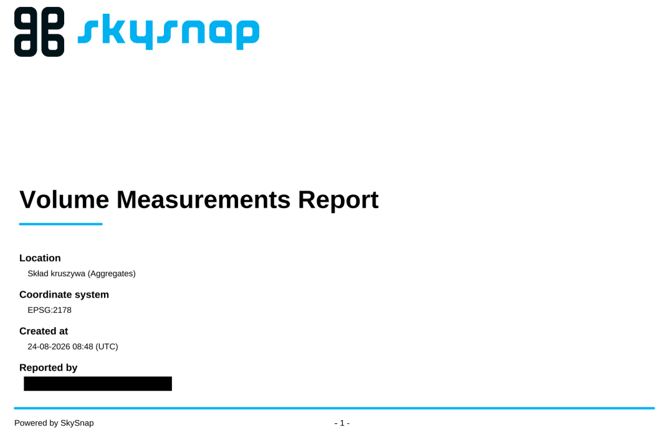
The volume report consists of the following parts:
- Title page (page 1) - basic report information:
- Location,
- Coordinate system,
- Report date,
- Created by.
- Overview (page 2) - volume outlines with numbering, shown on an orthophotomap background (if the project includes an orthophotomap).
- Volume summary table - a table of all outlines, where the following are provided for each one:
- ID,
- Name (e.g. mileage),
- Area 2D [m²],
- Cut [m³],
- Fill [m³],
- Net [m³] (net volume).
- A separate page for each outline - a cropped section of the base layer with the outline and the following data:
- ID,
- Name,
- Area 2D [m²],
- Fill [m³],
- Cut [m³],
- Net [m³],
- Surface used for the calculation,
- Reference surface used for the calculation,
- a View in SkySnap Portal link allowing you to open the measurement in the portal.
-
- Material,
- Density [t/m3],
- calculated Fill weight [t],
- calculated Cut weight [t],
- calculated Net weight [t].
NOTE: The volume report is also available in .CSV format. You can view a sample report by clicking VOLUME REPORT (.CSV).
Measurement report
NOTE: This report includes all basic visible measurements created manually: points, lines, and areas.
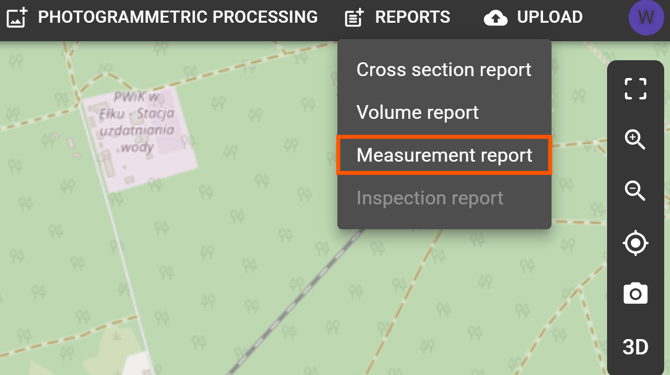
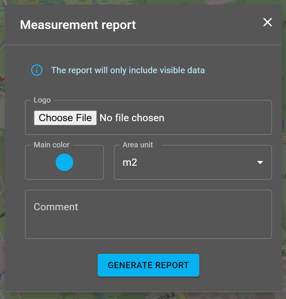
In the displayed window, fill in the following optional parameters:
- Logo - your own logo file,
- Main color - the main report color,
- Area unit - area unit (e.g. m²),
- Comment - an additional comment.
Click GENERATE REPORT. The finished report will be sent to your email.
TIP: You can view a sample measurement report by clicking the graphic below. ⬇️
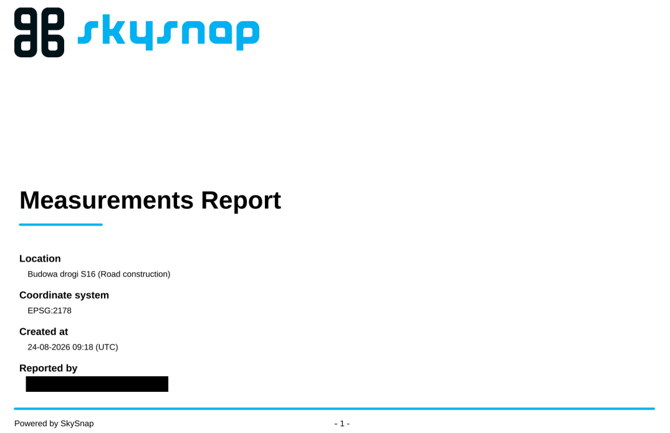
- Title page (page 1) - basic report information:
- Location,
- Coordinate system,
- Report date,
- Created by.
- Table of contents (page 2) - a list of measurement types included in the report, with links to the relevant sections of the file containing detailed tables for each measurement type.
- Overview graphic - the measurements shown with numbering on an orthophotomap background (if the project includes an orthophotomap).
- Summary tables for each measurement type (pages 4, 8, 11).
- A page for each individual measurement with details:
-
Pins (pages 5–7):
- Name,
- Pin color assigned in the portal,
- ID,
- X, Y coordinates and elevation H [m],
- Latitude and longitude (WGS84),
- Google Maps link,
- Link to the SkySnap Portal.
-
-
-
Distances (pages 9–10):
- Name,
- Color assigned in the portal,
- ID,
- Distance [m],
- Link to the SkySnap Portal.
-
-
-
Areas (pages 12–13):
- Name,
- Color assigned in the portal,
- ID,
- Area 2D [m2] - 2D area,
- Link to the SkySnap Portal.
-
TIP: Remember that you can generate a report for all measurement types (pins, distances, areas) or for only one type (e.g. pins) by turning off the visibility of the layers you do not want to include in the report.
NOTE: The measurement report is also available in .CSV format. You can view a sample report by clicking MEASUREMENT REPORT (.CSV).
Inspection report
Selected annotations added to photos can be collected in an inspection report. From the top menu, select Reports → Inspection report.
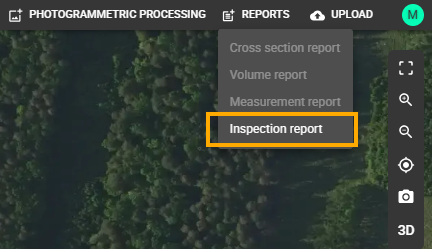
Before generating the report, you decide which annotations will be included. You can narrow down the scope of existing annotations by filtering by severity levels and tags.
ATTENTION: By default, the report will include all added annotations.
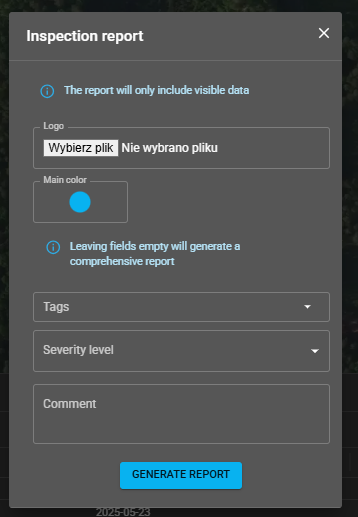
TIP: You can view a sample inspection report by clicking the report image below. ⬇️
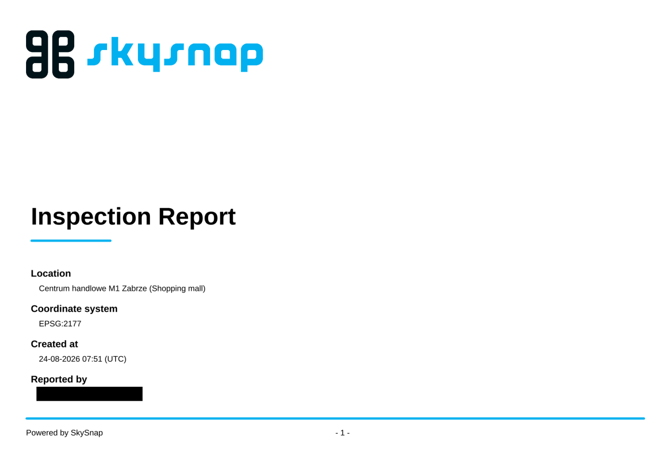
- Title page (page 1) - basic report information:
- Location,
- Coordinate system,
- Report date,
- Created by.
- Annotation summary (pages 2–3):
- Number of annotations - the total number of annotations,
- Severity levels 1–5 and unset (no assigned level) - a summary of the number of annotations broken down by severity level.
- Summary table with the following columns:
- Photo (file name),
- Severity level,
- No. (annotation number),
- Annotation (tags/labels),
- Description.
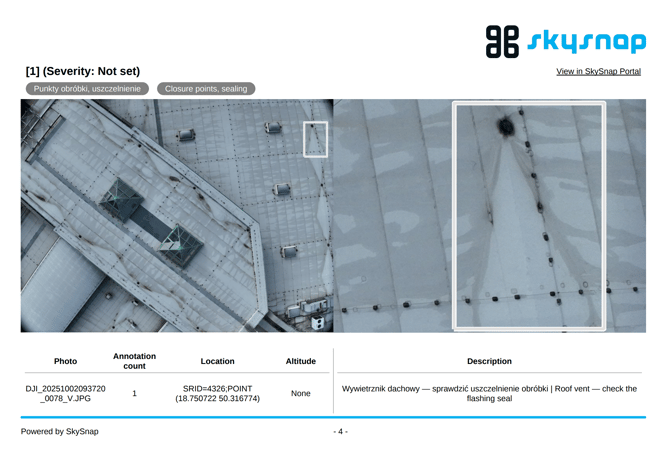
- A page for each individual annotation (pages 4–11) - a detailed description with the photo and the marked defect area, including the following data (from top to bottom):
- No. (annotation number),
- Severity level,
- Tags/labels (color-coded by severity level),
- Photo (file name),
- Number of annotations in the photo,
- Location (coordinates),
- Elevation,
- Description,
- Link to the annotation preview page in the portal (below the logo).
NOTE: The inspection report is also available in .CSV format. You can view a sample report by clicking INSPECTION REPORT (.CSV).