
Table of Contents:
Working in the comparison view — split slider
Introduction
The comparison view allows you to display and contrast data from two separate projects side by side on a single screen — such as drone flights performed on different dates. The screen is split by a vertical slider into a left and a right section, and you can independently choose the date (project) and layers for each side. This is the fastest way to evaluate work progress, identify terrain changes, or compare the site condition before and after construction works.
Timeline
At the top of the screen, there is a bar containing information about the organization, site, and the project you are currently viewing.
Click the calendar icon to open the timeline with the other available projects.
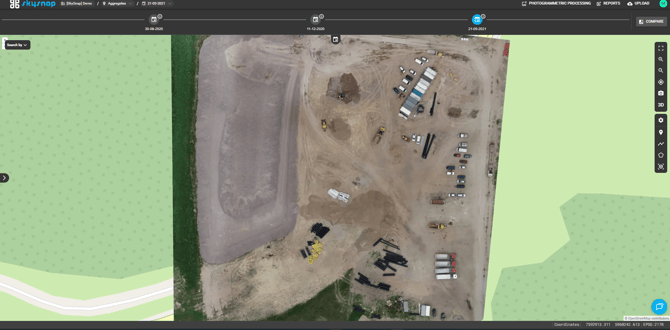
The timeline displays all projects (flight dates) within the site — the project currently on display is highlighted. Clicking on a specific date will switch you to that project.
Select a project and compare
On the right side of the timeline, there is a "COMPARE" button. Clicking it opens the "Select projects to compare" window:
- Main project — the project displayed on the left side of the screen.
- Second project — the project displayed on the right side of the screen.
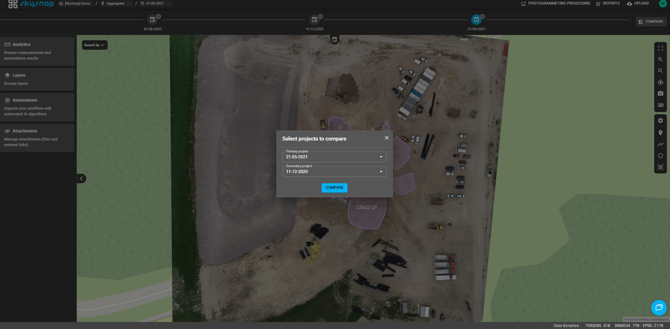
Select the dates from the drop-down lists and confirm your choice by clicking the "COMPARE" button.
Working in the Comparison View — Split Slider
Once the comparison mode is activated, the screen is split by a vertical line with a slider. By dragging the slider to the left or right, you reveal a larger section of one of the projects—this allows you to "swipe" over the exact same area and instantly spot the differences between the dates.
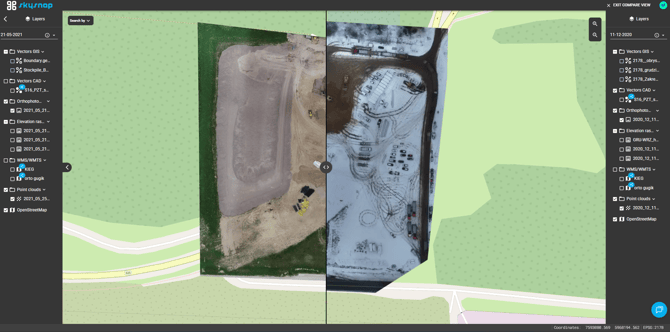
The dates of the compared projects are displayed above the layer panels on both the left and right sides of the screen—you can change them at any time without exiting the comparison mode.
Layers of Compared Projects
In comparison mode, each side of the screen has its own "Layers" panel—the main project layers are on the left, and the second project layers are on the right.
Layers are grouped into folders (including Orthophoto, Elevation rasters, Point clouds, Vectors GIS, Vectors CAD, WMS/WMTS, OpenStreetMap) and can be toggled independently for each side by checking the box next to the layer name.
This allows you to, for example, display an orthophotomap on the left side and an elevation raster on the right side from the same or a different date.
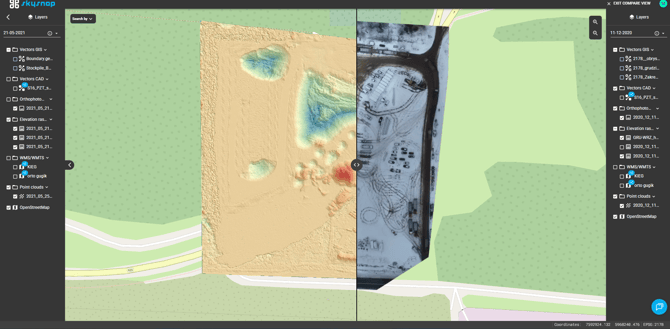
Example: An orthophotomap on the left and an elevation raster on the right—you can display different data types on each side.
3D View
The comparison feature also works in the 3D view — you can switch between 2D and 3D modes using the 3D/2D button on the toolbar located on the right side of the screen. In the 3D comparison mode, the screen remains divided by the slider, and you can select the dates of the compared projects from the "Project date" drop-down lists in the top corners of the screen.
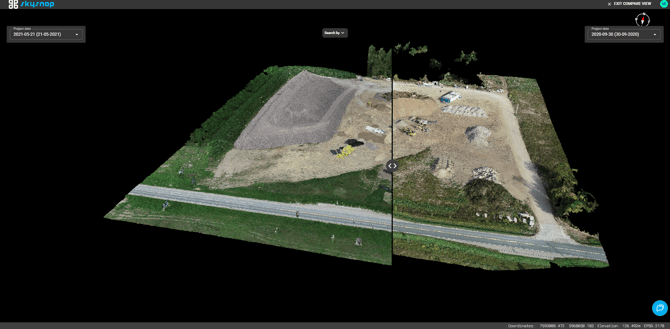
To return to the standard view, click "EXIT COMPARISON VIEW" on the top bar of the screen.