Table of contents:
Photo orientation visualization in 2D and 3D views
Knowledge base available in the chat window
Improvements
Two new ways to visualize photo positions have been introduced: arrows and pyramids. These symbols allow users to quickly assess the direction and orientation of captured photos and approximately determine the area of space visible in the photograph.
Photo split view
A new photo display mode has been added. It opens when you click a photo icon on the map or in the table. The screen is divided into two sections: the map or scene is displayed on the left, while the photo preview panel with annotations is shown on the right. In addition to the features carried over from fullscreen mode, two new options have been added to enable data analysis from the camera’s perspective:
- Synchronize views: one-time synchronization of the map/scene with the currently displayed photo.
-
Automatic view synchronization: continuous synchronization of the map/scene with subsequently displayed photos.
Knowledge base available in the chat window
You can now use the SkySnap Knowledge Base directly through the chat. Users can quickly learn about the portal’s key features and resolve questions about how it works by reviewing the instructions available in the “SkySnap Portal” tab. A preview of the selected article opens in the chat window. You can also enlarge the window or open the article in a new browser tab.
Raster metadata
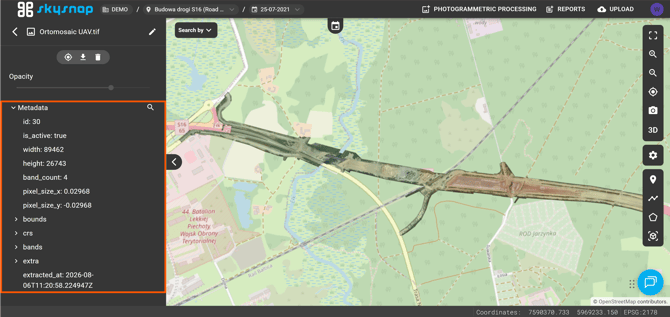
Easy access to raster metadata has been added to the layer properties. The displayed information includes, among other things, the spatial extent, number of bands, and ground resolution. You can search for specific parameters using the magnifying glass icon.
3D scene configuration
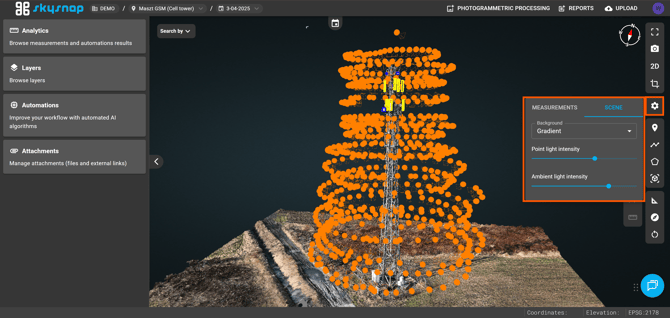
The 3D view now allows you to customize the scene, including the background and lighting parameters. These settings are available by clicking the settings icon (gear icon) and navigating to the “Scene” tab.
New project loading
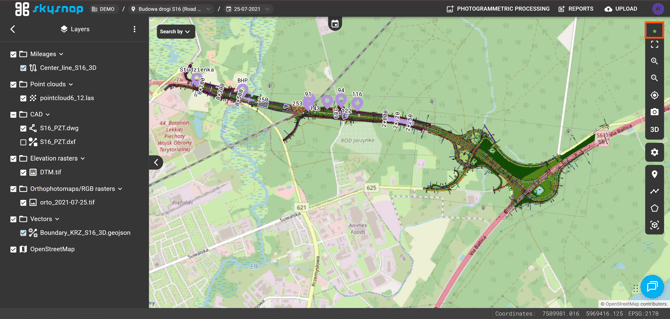
Selected organizations now have access to the new project loading feature. It can be identified by a dedicated icon at the top of the right sidebar. This is a beta feature — if you encounter any problems, please contact our team at app@skysnap.com.
Changes
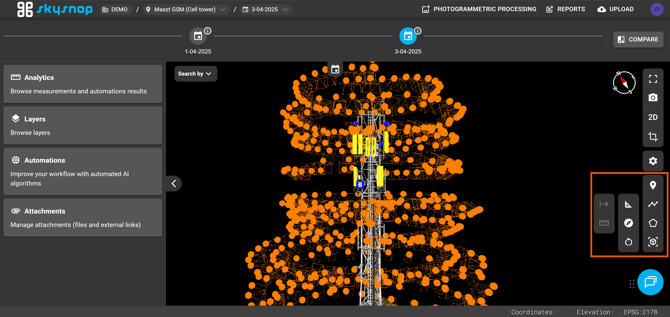
Workspace toolbar adjustment
When the timeline is open and space is limited, the toolbar partially collapses and moves toward the center of the screen. This solution is particularly helpful when working on lower-resolution screens.